

Get up and running in Excel
Follow these three steps to install SwiftCell and start saving time in your spreadsheets.
Create your account
Start your 14-day free trial — no credit card required. You'll choose a plan when you're ready, not before.
Create accountInstall the SwiftCell add-in
Download the SwiftCell manifest and sideload it into Excel using the steps below. A one-click Microsoft AppSource listing is on the way; until then, sideloading takes about a minute.
Download manifestOpen Excel and start
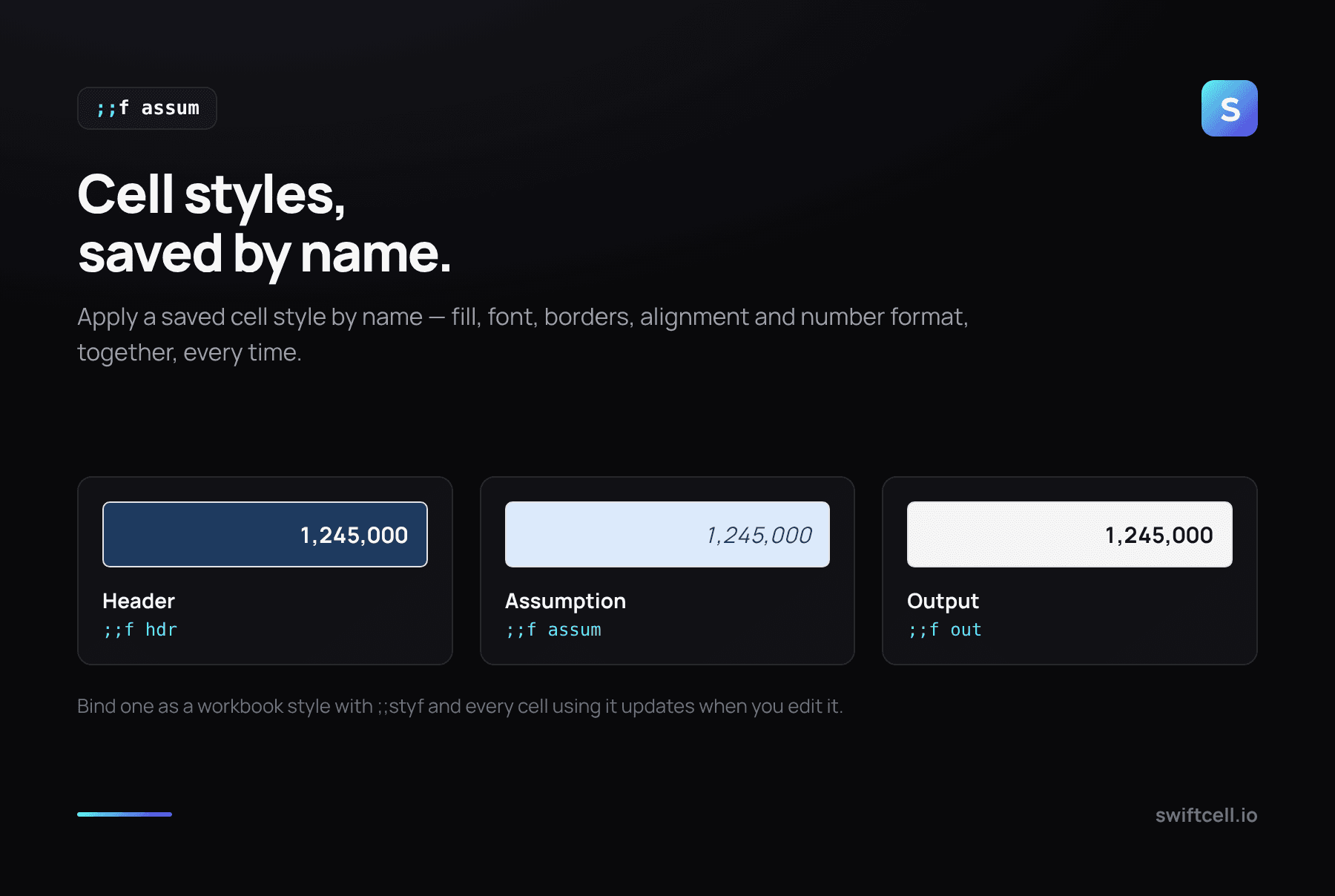
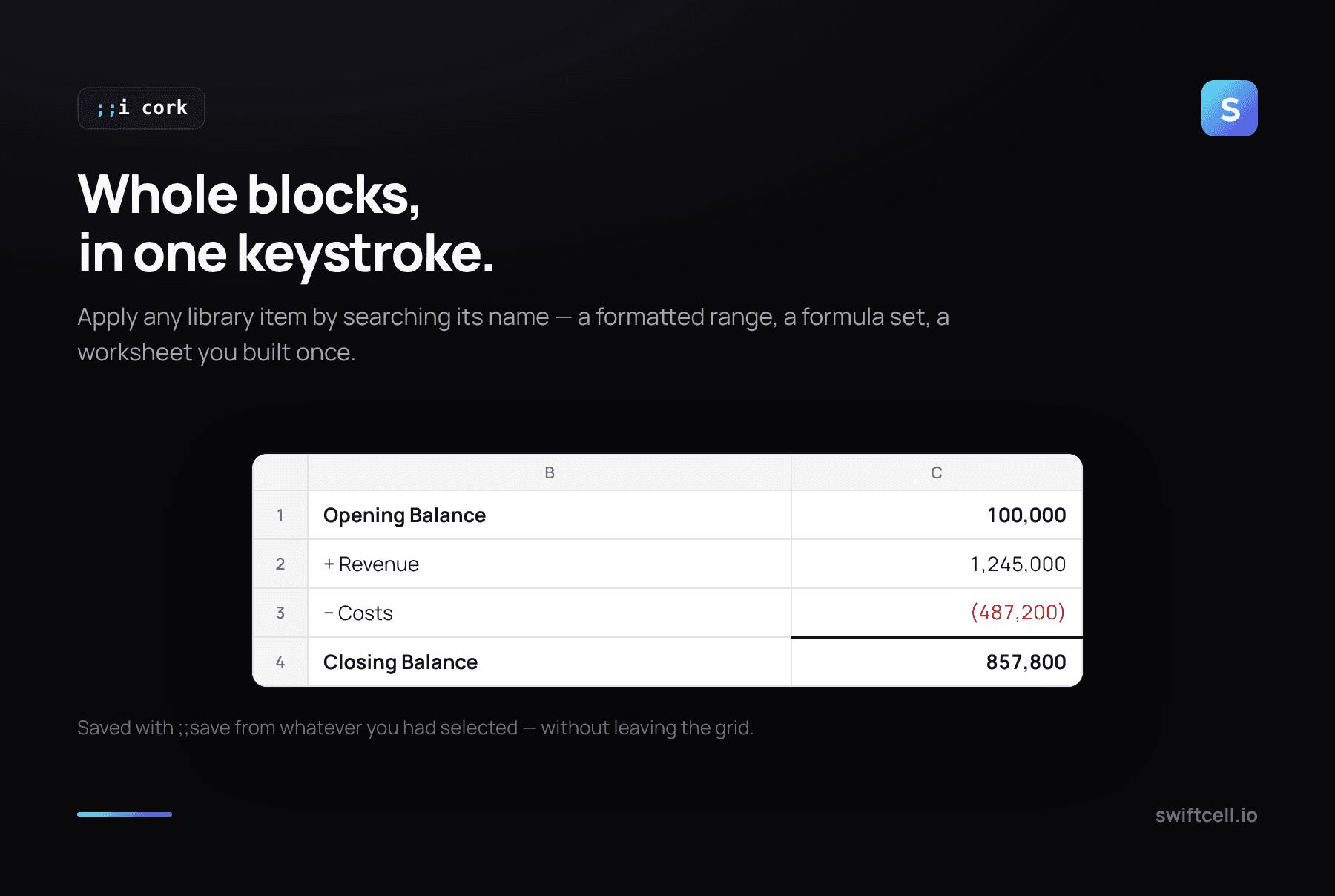
Open any workbook and find SwiftCell on the Home tab. Click Open SwiftCell to launch the task pane, then type a command straight into a cell — ;;hdr to apply a header style, ;;save to store the selection for reuse.
What you can save
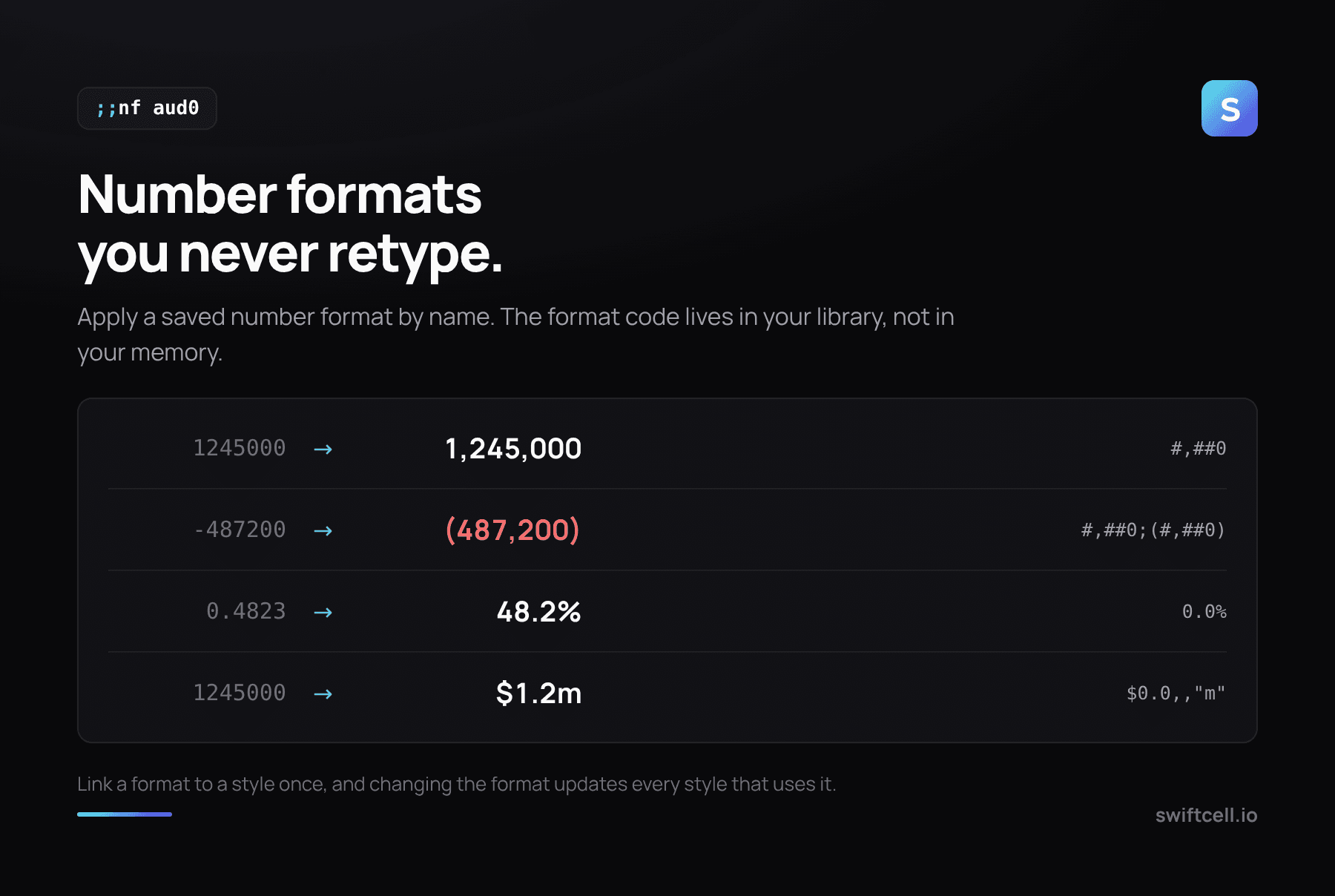
Anything you format once. Name it, then type the name in any cell.
How to sideload the add-in
- Download the manifest file using the button in Step 2 above.
- Open Excel on your desktop (Windows only).
- Go to Insert → Add-ins → My Add-ins → Upload My Add-in.
- Browse to the downloaded manifest XML file and click Upload.
- SwiftCell will appear in your ribbon under the Home tab.
SwiftCell will be available on Microsoft AppSource shortly — sideloading will no longer be required after that point.